How to Use MarketData Hub — The Complete Guide
This is the complete manual for the MarketData Hub desktop client — every screen and every feature, in the order you actually meet them: install and activate, find a market, configure a download, run the queue, pick your files up off the disk, and open them in the built-in chart viewer. The higher tiers add batch queueing, a headless CLI, a scheduler and watch mode; those are here too. Every screenshot below is the real app, not a mock-up (the two chart frames use illustrative prices).
Before you start: what the app actually does
MarketData Hub is a desktop application that downloads historical market data from the Dukascopy Bank SA archive on your own machine. It is not a data feed and not a web service: when you press go, your computer opens the connection to the source, fetches the data in your name, and writes plain files to a folder you choose. Nothing you fetch — and no record of which instruments or dates you picked — ever passes through our servers. You are buying the software; what you may do with the retrieved data follows the source's own terms.
One thing to state up front, because it governs the entire app: every licence tier reaches the whole catalogue and the full history. Tiers differ only by what the software can do — export formats, batch queueing, automation — never by which instruments, how far back, or how much you can download.
Step 1 — Install and activate
Get the app for your operating system (Windows, macOS, Linux) — it is free to install. On Windows it comes from the Microsoft Store: Microsoft signs the package itself, so it installs like any other Store app with no security prompt and keeps itself up to date. The macOS build is not code-signed, so its first launch needs one confirmation in System Settings — the download page spells out the exact clicks. Linux has nothing to bypass. Once the app opens, sign in with the account you used on this site; if you've bought a licence it activates itself — once per computer, and offline from then on. Without a licence the app still opens and lets you explore the catalogue; a licence is what lets it fetch.
A licence is a one-time purchase from €9, not a subscription. See the three tiers for what each unlocks — and note that the picker on our home page mirrors the app's interface, so you can walk the whole flow before buying anything.
Step 2 — Find your instrument
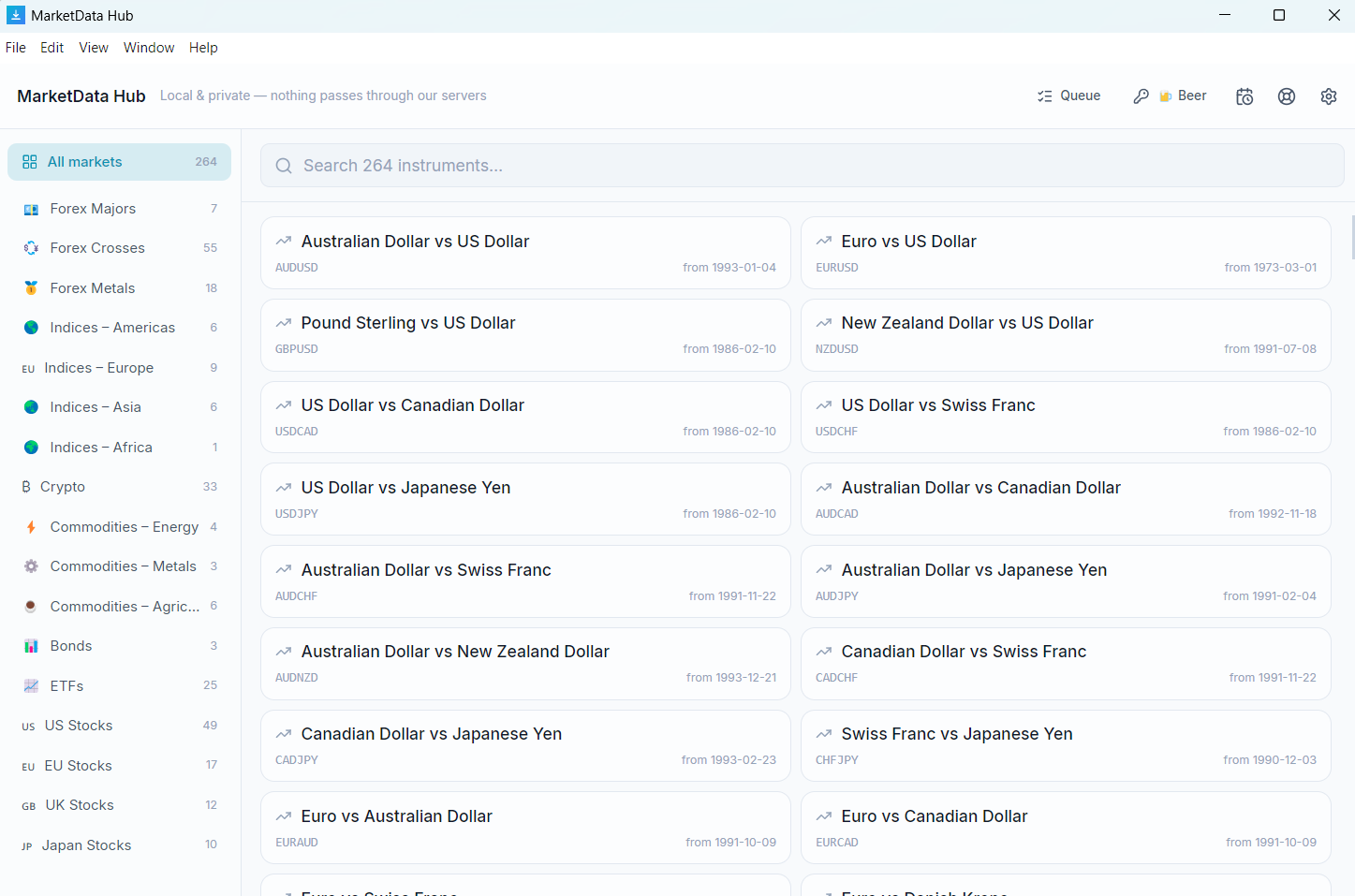
The main window is the catalogue: all 265+ instruments grouped by asset class — forex majors and crosses, precious metals, cryptocurrencies, stock indices, energy and agricultural commodities, bonds, ETFs and single shares. Search by name or symbol, or filter to a class, then click one to select it.
Step 3 — Configure the download
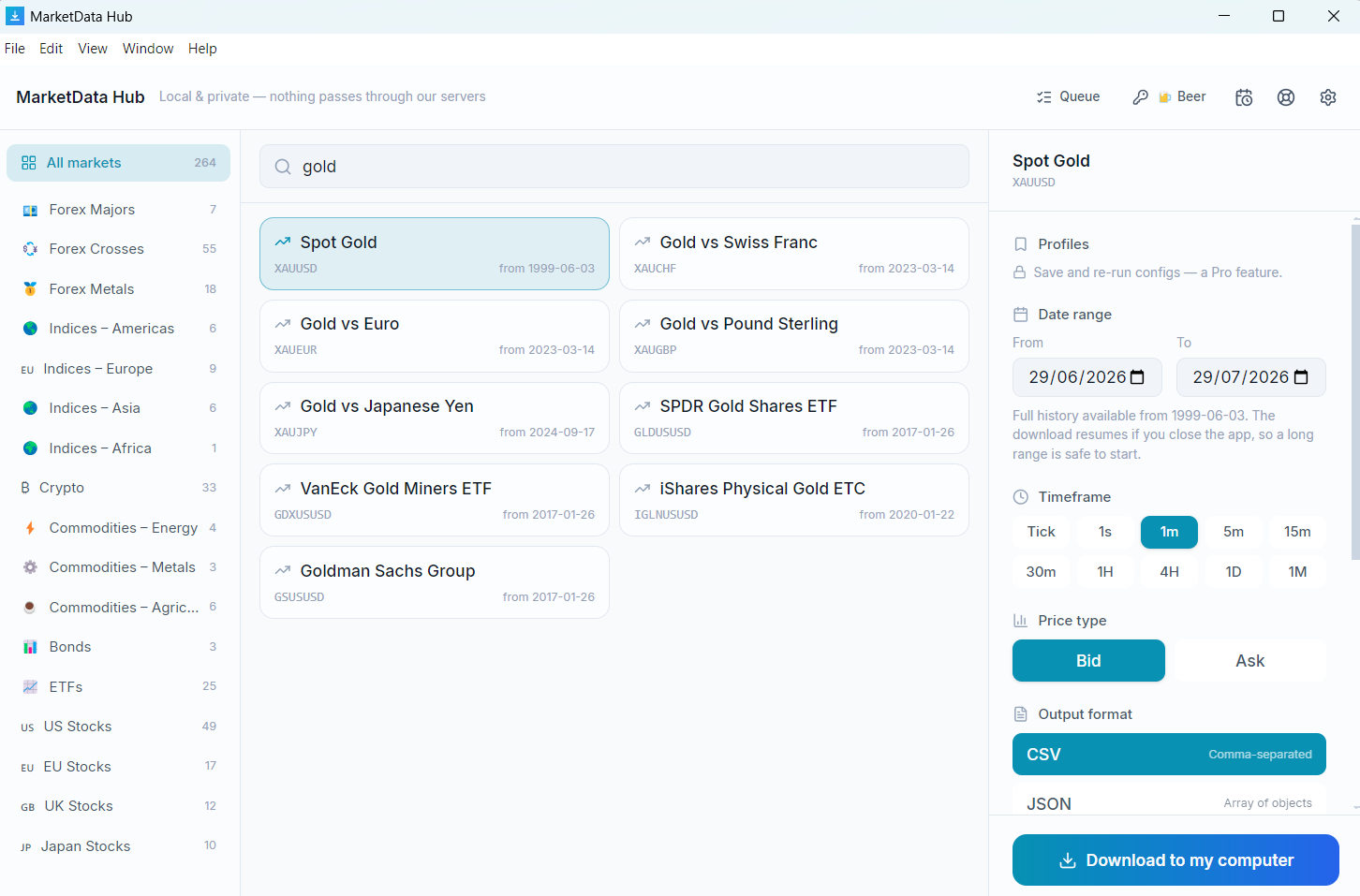
Selecting an instrument opens its configuration panel. Four choices decide exactly what file you get:
- Timeframe — ten granularities, from raw ticks (every quote) through 1-second, 1/5/15/30-minute, hourly and 4-hour candles, to daily and monthly. Finer timeframes mean far larger files and shorter available history — see how big the files get.
- Date range — any window inside what's available. The start date differs by timeframe: daily candles for a major often reach decades further back than its ticks, and the panel shows the earliest date for what you've picked. Nothing is priced by span — a decade costs exactly what a day does.
- Price side — bid or ask. (Tick exports carry both on every row.)
- Format — CSV or JSON on every tier; the Pro licence adds MetaTrader, NinjaTrader, Parquet and SQLite/DuckDB writers (below).
You also choose the output folder here — the finished files land there and nowhere else.
Step 4 — Run it, and watch the queue
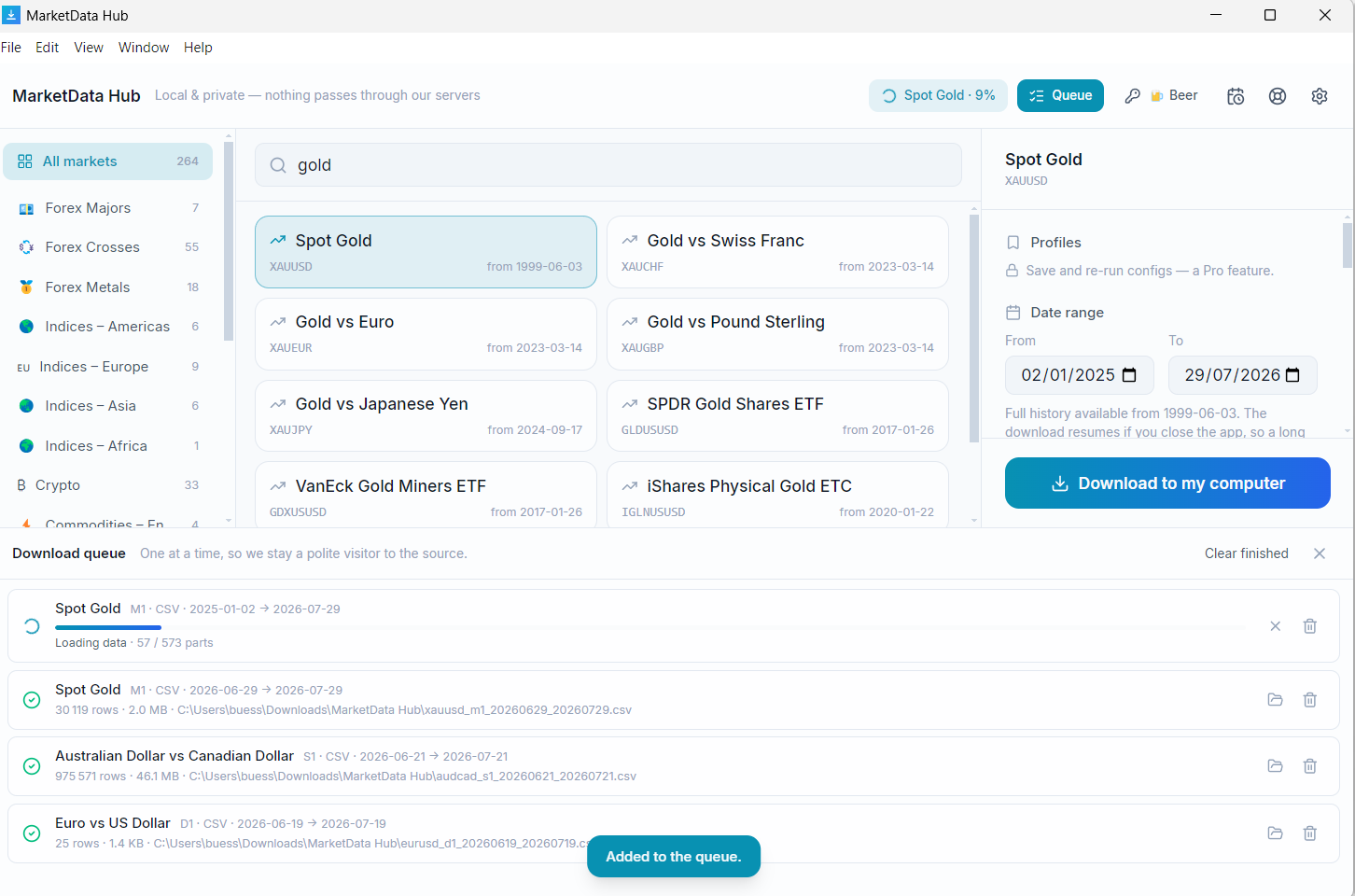
Press go and the job enters the download queue. Several things about how it runs are deliberate and worth knowing:
- One job at a time. The engine already keeps many requests in flight at once — that is the pacing the source tolerates from a single machine. It is not a setting, and it is why a second download waits rather than doubling your request rate.
- A pause is never a failure. If the source throttles, or a chunk needs another try, the app backs off and shows a countdown, not an error. Left alone, it recovers on its own — so don't cancel a job that is simply waiting.
- Weekend and holiday gaps are normal. Roughly a third of tick chunks fall on non-trading days; the app skips them rather than retrying, and their absence from the file is correct, not missing data.
- It resumes itself. Progress is written to an on-disk manifest as the job runs, so if you close the app or lose the connection mid-run, restarting the job picks up exactly where it stopped instead of starting over.
- A short series is never dressed up as a complete one. If any part of the range could not be fetched, the finished job is flagged incomplete — loudly — so a hidden gap can never quietly corrupt a backtest.
Step 5 — Your files
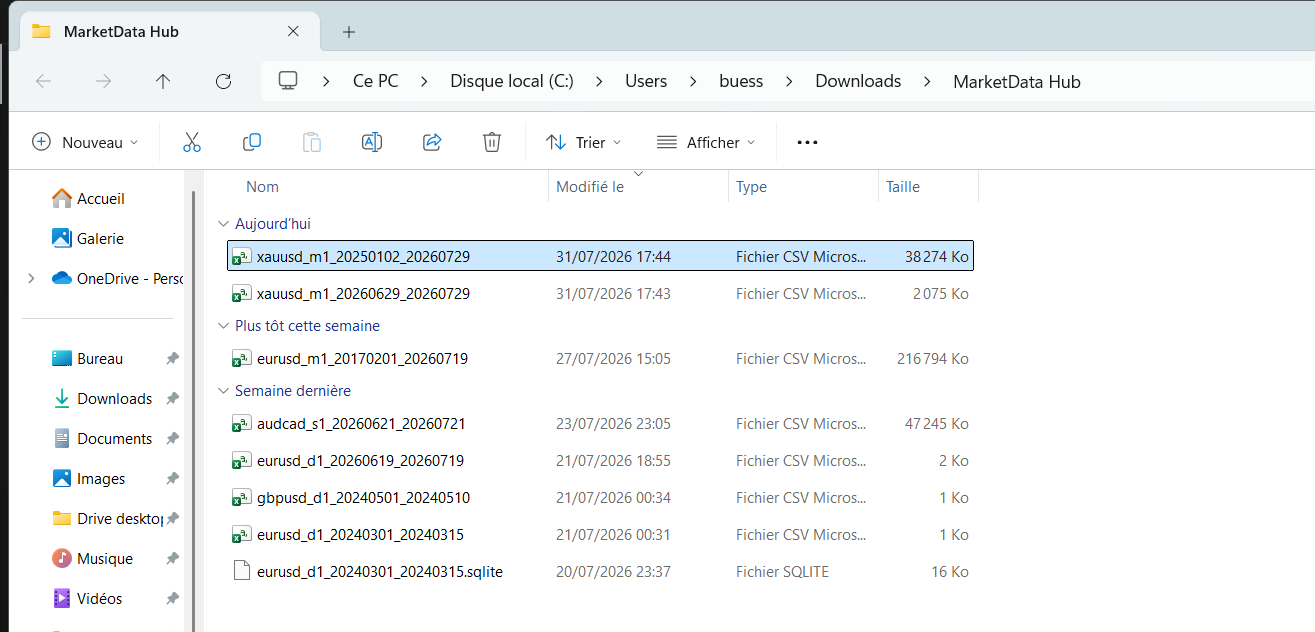
When a job finishes, the data is a plain file in the folder you chose — nothing to unpack, nothing held on a server. The app writes to a temporary .part file and renames it only once the download is complete, so a killed app never leaves a truncated file wearing the right name. From here the data is yours to load anywhere: Python (pandas), Excel or Google Sheets, MetaTrader, NinjaTrader, or SQL with DuckDB.
Step 6 — Look at it: the chart viewer
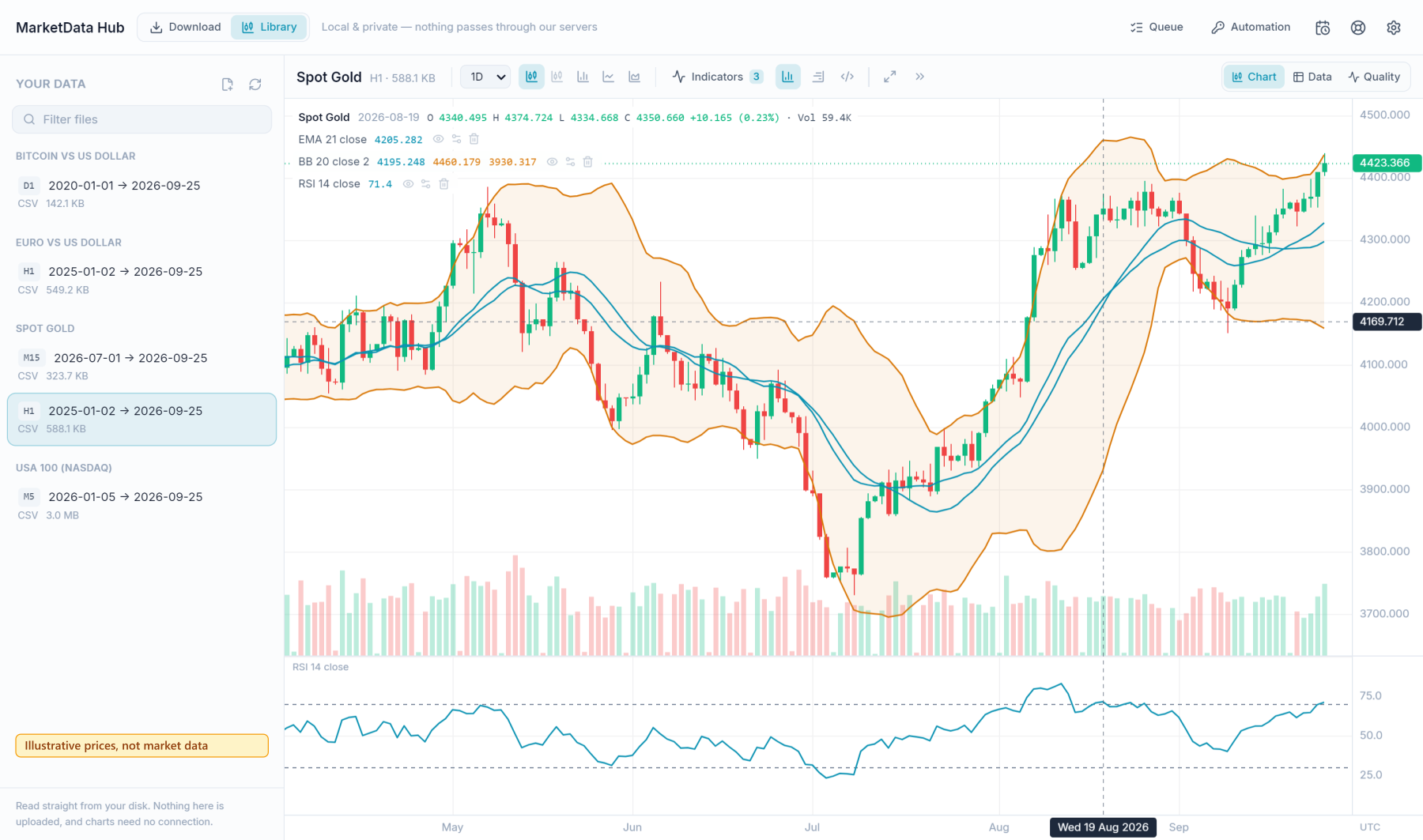
Since version 0.6 the app can also show you what you downloaded. The Library tab is simply a list of the files the app has written, with a button to open each one in the chart viewer — the files stay exactly where they are, as plain files in your folder, and are read from there when you open them. You can open any other CSV the same way.
- Chart — candles, OHLC bars, line or area; zoom from years down to single bars, and view a fine file as coarser bars (a 1-hour file as daily candles, for example).
- Indicators — 50+ built in, plus market profile. Right-click any indicator on the chart to hide it, change its settings or remove it.
- Table and quality check — the rows themselves, and a view that points out gaps and damaged timestamps before you build anything on the file.
- Your own indicators in Python — write one with numpy and pandas and it plots on the chart. Python runs inside the app, offline, with no network access.
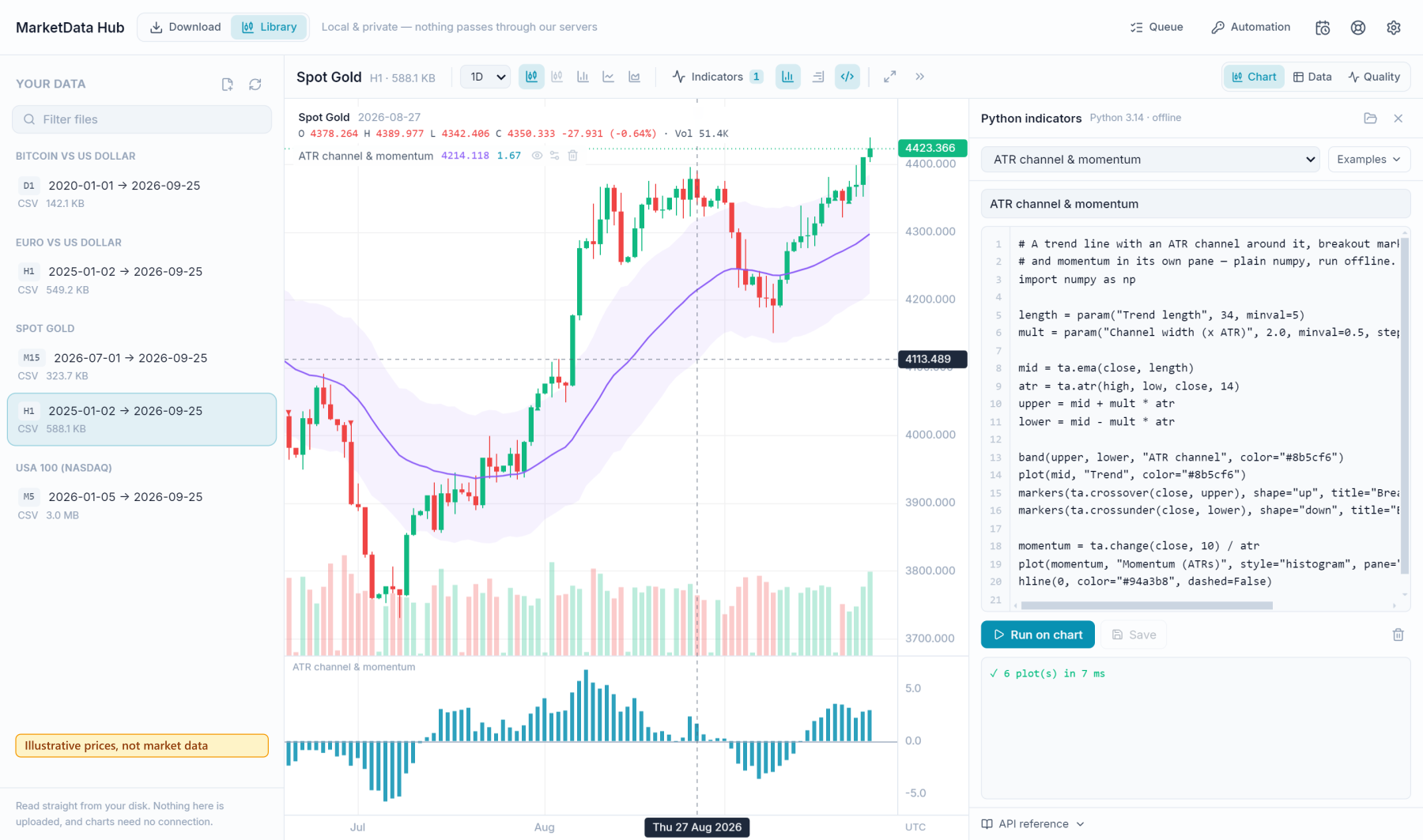
The chart viewer is on every licence. Nothing you open is uploaded anywhere.
Export formats (Pro)
Every tier writes CSV and JSON. The Pro licence adds writers that produce files ready for a specific tool, so you skip the reshaping step:
- MetaTrader and NinjaTrader — laid out exactly as those platforms' importers expect (see the MT4/MT5 and NinjaTrader 8 guides).
- Parquet — columnar and typically several times smaller than the same data as CSV, and far faster to query.
- SQLite / DuckDB — a single indexed database file you can query directly with SQL.
These change the shape of the output, never the data behind it — a €9 licence and a Pro one fetch identical quotes.
Batch queueing (Pro)
On the entry tier you queue one instrument at a time. Pro lets you line up many at once — pick a basket of instruments, a timeframe and a range, and the app works through them, still one job at a time (that pacing rule never bends), unattended. This is what you want when you need the same range across a dozen pairs without starting each one by hand.
Automation — CLI, scheduler, watch mode, profiles (Automation)
The Automation licence turns the same retrieval engine into something you can script and leave running. None of it fetches data any way the manual UI can't — it is automation over the same one-at-a-time queue.
- Headless CLI — the same app, launched with a
cliargument, runs a single job with no window and exits with a status code, so it drops into shell scripts, cron and CI. It reuses the app's licence and its retry behaviour; output goes to both the console and the app log. - Scheduler — save a configuration as a profile and have the app fire it on a cadence while it is open, enqueuing one job each time it is due. If your licence lapses, the schedule simply stops.
- Watch / refresh mode — a scheduled run rolls its end date forward to the latest available data and fetches only the tail since it last succeeded, keeping a dataset current without re-downloading it. The watermark advances only after a run that finished complete, so an interrupted refresh can never bake a permanent gap into the growing series.
- Profile import / export — save your instrument/timeframe/range setups to a file and move them between machines. A profile is configuration, never data.
Keeping it up to date
Updates are free for the licence you bought, and security updates are guaranteed for at least five years from your purchase. The app can check for new versions and tell you when one is out — off by default, and switched on in Settings, because nothing here contacts anyone without being asked to. On Windows the Microsoft Store handles updates for you. The Linux AppImage can install them itself; the macOS build tells you and hands you the download page, since an ad-hoc-signed bundle cannot be replaced in place. Whichever way, your settings, your saved profiles and your licence stay where they are.
Your privacy
This is the part the whole design exists to protect. In normal use, nothing about your activity leaves your machine: your instrument and date selections never travel anywhere, downloads go source → disk with no server of ours in the path, and the app carries no telemetry, no crash reporter and no analytics. The single exception is a problem report you can send from the Help menu — and it shows you every word it will send before anything leaves, so there is no quiet channel. (The optional update check added in v0.5.0 is off by default and asks GitHub for a version number; it says nothing about you or your downloads.) The app also keeps a local log to help diagnose a failed run; it redacts credentials and email addresses as it writes them, so the log itself can't leak them.
Getting help
This page is the manual — bookmark it; it is the quickest reference for every feature above. If something is actually wrong, the best first step is inside the app: Help → send a problem report attaches the local log (which you can read first) so we can see what happened without you having to describe it. You can also reach us at team@marketdata-hub.com — Pro and Automation licences include priority email support. For questions about the data itself — coverage, how candles are built, why weekends are empty — see the data methodology, and the rest of the guides cover loading the files into specific tools.
Frequently asked questions
- Do I need a licence to install the app?
- No — the app is free to install and opens without one, so you can look around the catalogue first. A licence (from €9, one-time) is what lets it fetch data; it activates once per computer, then works offline.
- Does every tier get the same data?
- Yes. Every tier reaches the full catalogue, every timeframe and the complete history. The tiers differ only in software features — export formats, batch queueing and automation — never in how much data you can download.
- What happens if my download is interrupted?
- It resumes. Progress is written to an on-disk manifest as the job runs, so restarting it after a closed app or a dropped connection continues from where it stopped rather than starting over. If any part of the range still could not be fetched, the job is flagged incomplete so you know.
- Why is the app showing a countdown instead of downloading?
- That is a deliberate pause, not a failure. When the source throttles or a chunk needs another try, the app backs off and counts down before retrying — leave it and it recovers on its own. Cancelling a job that is only waiting is the one thing to avoid.
- Which features need a paid tier?
- CSV and JSON export, the one-at-a-time download queue, resume and the chart viewer are on every tier. Pro adds MetaTrader, NinjaTrader, Parquet and SQLite/DuckDB export plus batch queueing; Automation adds the headless CLI, scheduler, watch mode and profile import/export.
- Is any of my activity sent to your servers?
- No. Your instrument and date selections never leave your machine, and downloads do not pass through our servers. The only thing that can leave is a problem report you explicitly send from the Help menu — and it shows you every word first.
Related markets
- Forex Majors historical data · 7 instruments
- Crypto historical data · 33 instruments
- US Stocks historical data · 49 instruments
- The full catalogue · all 265 instruments