Importing Historical Data into NinjaTrader 8
NinjaTrader is free for charting and strategy backtesting, but its built-in history is thin the further back you go. Importing your own data fixes that — decades of candles or full tick series, loaded once and available to every chart and Strategy Analyzer run. Here's the whole procedure, including the two settings that silently ruin imports.
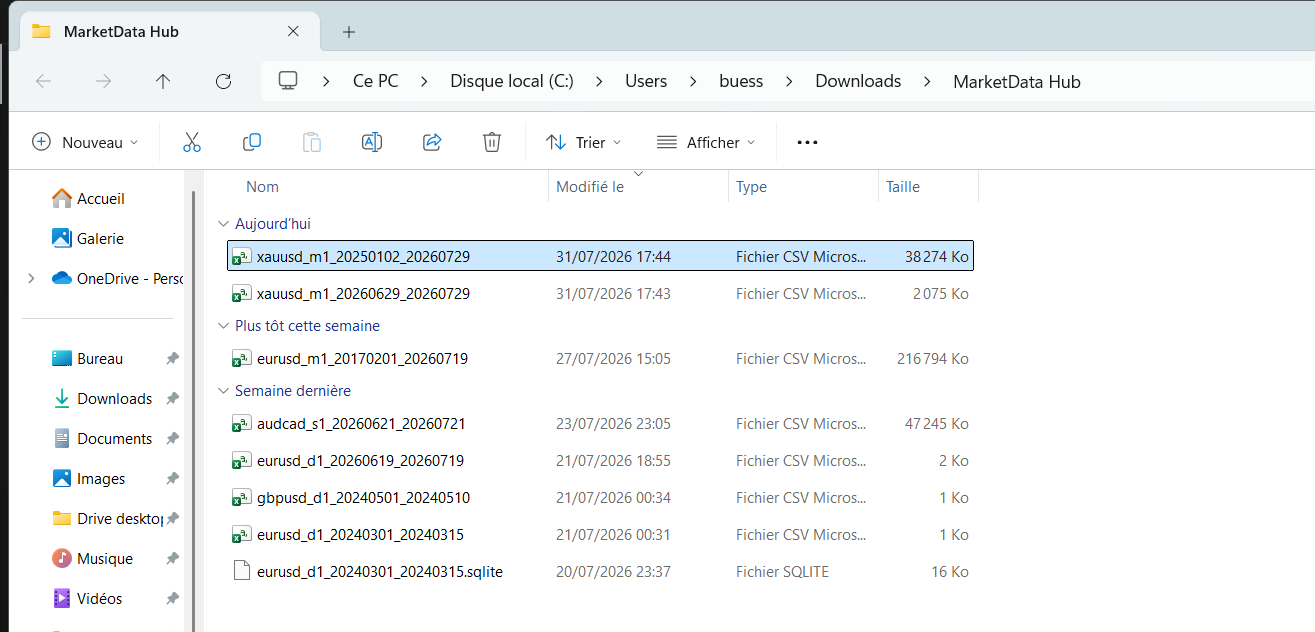
Step 1 — Export data in a shape NinjaTrader accepts
NinjaTrader 8 imports plain text files with semicolon-separated values. For minute (and other intraday) bars it expects one bar per line:
yyyyMMdd HHmmss;open;high;low;close;volume
20240102 000100;1.10455;1.10472;1.10440;1.10461;1210
Daily bars drop the time component (yyyyMMdd;open;high;low;close;volume), and tick files use NinjaTrader's single-tick layout with sub-second timestamps. With the MarketData Hub Pro licence, the client writes NinjaTrader-ready files directly — pick the NinjaTrader format at export time and skip any conversion. The standard CSV export (every licence) carries the same fields and reshapes into the layout above with a few lines of pandas or a spreadsheet, as described in the format guide.
Step 2 — Import the file
- In the NinjaTrader Control Center, open Tools → Historical Data.
- Choose Import → Text file, and select your exported file.
- Pick the matching instrument (e.g. the EURUSD forex instrument — add it via the Instruments window first if your installation doesn't list it), and the data type: Tick, Minute or Day.
- Set the timezone to UTC. This is the setting that ruins imports: every MarketData Hub export is timestamped in UTC, and if the import dialog is left on your local time NinjaTrader shifts every bar — sessions open at the wrong hour and nothing lines up with the calendar. Tell it the file is UTC and it converts correctly from there.
Step 3 — Verify before you trust it
Open a chart on the imported instrument and check three things: the series starts and ends on the dates you exported, weekends are gaps (correct, not missing data), and a known event lands on the right bar — a central-bank day, or the GBP/USD Brexit session, is easy to eyeball. Five minutes of checking here saves a backtest built on time-shifted bars.
Bid, ask, or last?
NinjaTrader distinguishes bid, ask and last series; forex data has no "last" trade, only quotes. Export the bid side for a conventional chart (or ask, for the buy side of spread-aware work), and keep the choice consistent across instruments — a strategy fed bid data for one pair and ask for another has a built-in bias the backtest will never show you. Tick exports carry both on every row.
What to import
For Strategy Analyzer runs over years, minute or hourly candles keep import times and disk use sane (see how big the files get). Full tick import is worth it when you need NinjaTrader's playback or spread-sensitive fills. Any of the 265+ instruments exports in the range and timeframe you pick — EUR/USD, the US 500 and gold are the usual first imports.
Frequently asked questions
- Can NinjaTrader import CSV historical data?
- Yes. NinjaTrader 8 imports semicolon-separated text files via Tools → Historical Data → Import → Text file, for tick, minute and daily series. The values are the same fields a standard OHLC CSV carries; only the layout differs.
- Why is my imported data shifted by a few hours?
- The import dialog's timezone did not match the file. Exports here are timestamped in UTC, so select UTC at import and NinjaTrader will map bars to your configured session times correctly.
- Is NinjaTrader free to use with imported data?
- NinjaTrader is free for charting, market replay and strategy backtesting on simulated accounts — you only pay NinjaTrader for live trading. Imported historical data works fully in the free tier.
- Do I need the Pro licence to use NinjaTrader?
- No — every licence exports CSV you can reshape for the importer. The Pro licence adds a writer that produces NinjaTrader-ready files directly, which removes the conversion step.
Related markets
- Commodities – Energy historical data · 4 instruments
- Forex Crosses historical data · 55 instruments
- Indices – Americas historical data · 6 instruments
Related guides
- Backtesting a Trading Strategy with Historical Data
- Loading Historical Market Data in Python (pandas, Backtrader & VectorBT)
- Querying Historical Market Data with SQL (DuckDB)
- Automating Market Data Downloads
- How to Import Historical Data into MetaTrader 4 & 5
- Historical Market Data in Excel & Google Sheets
- How to Use MarketData Hub — The Complete Guide
- Download Gold (XAU/USD) Price History
- Historical Market Data CSV & JSON Format Explained
- Download EUR/USD Price History
- How Far Back Does Historical Market Data Go?